Troubleshooting WordPress website errors can be problematic, even more so when you’re not able to log into WordPress
One of the most common issues I encounter with WordPress websites relates to the corruption of WordPress core files.
[ Key TakeawaysThis article provides a guide in troubleshooting a common issue in WordPress websites, the corruption of core files. WordPress core files are the files in the main public directory such as wp-includes, wp-admin, and others. This article discusses two easy methods for repairing and recovering from WordPress errors. ]
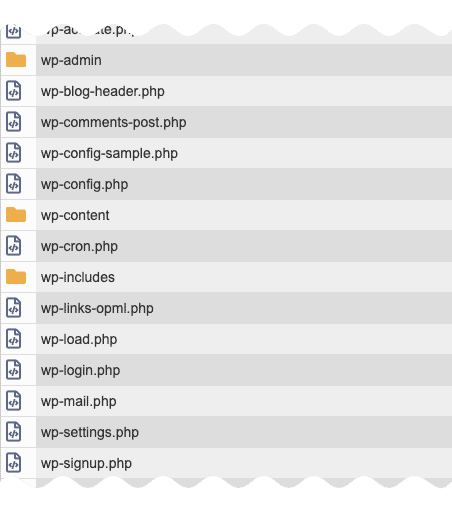
WordPress core files are those files in your main public directory, e.g., the directories wp-includes, wp-admin, and other associated files.
If your WordPress login page is reporting an error like the one below, then it’s very likely that files within your WordPress installation has been corrupted.
Repairing WordPress core files can be as simple as replacing the WordPress core files with the latest version from the WordPress Repository.
How to replace WordPress core files?
There are a number of ways to replace WordPress core files. I’ll list the two most common methods I personally use below.
Using File Manager. If your web hosting company provides a file manager option, try the steps below to replace your WordPress core files:
- Download the latest version of WordPress from the WordPress repository as a .zip file.
- Create a directory, like “new” into any directory within your hosting account.
- Using File Manager, upload the zip file, downloaded in step 1 above, into the “new” directory.
- Extract the zip file. This will extract the WordPress core files into a new directory named “wordpress.”
- Next, navigate into the “wordpress” directory and compress all of the files and directories into a new zip file, like “new.zip.”
- Once you have the core WordPress files and directories ready as “new.zip,” move that “new.zip” file in your public directory space and extract it there.
- This extraction of the “new.zip” files and directories will overwrite the existing WordPress core files and directories nicely.
- Check your WordPress login page to verify all is back to normal.
Using the cPanel WordPress Toolkit. If your web hosting company provides the cPanel control panel with the latest WordPress Toolkit option, then replacing the core WordPress files and directories requires just a few clicks.
How to replace WordPress core files with WordPress toolkit?
- Log into your cPanel and click the WordPress Toolkit, then click the “Scan” button on the WordPress Toolkit options page.
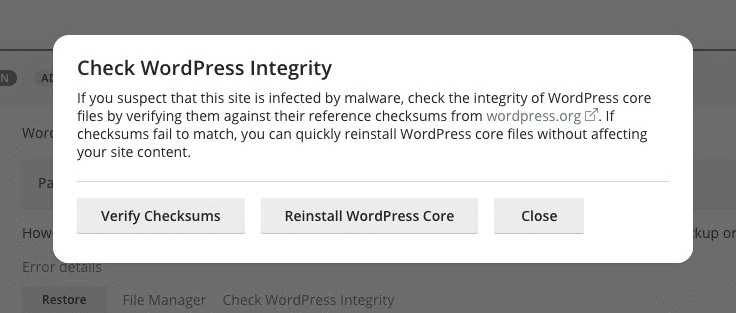
- Once the scan has completed and your WordPress installation is displayed, look for and click the words “Check WordPress Integrity” near the bottom of the page.
- There you’ll find the “Reinstall WordPress Core” button. Click this link to complete a re-installation of your core WordPress files.
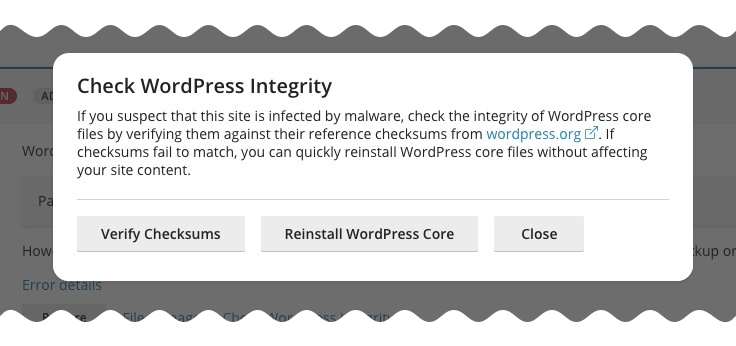
- Then check your WordPress login page to verify all is back to normal.
If you need help with any of the recommendations above, please feel free to ask me and I’ll help set this up for you today.
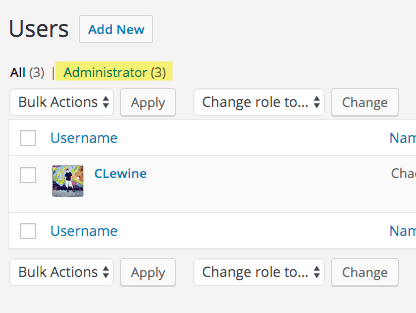
 Be sure to use a backup plugin, like Updraft Plus or Backup Buddy, to make a database backup.
 Add a new Administrator (user)
 Log into phpMyAdmin. Scary, huh?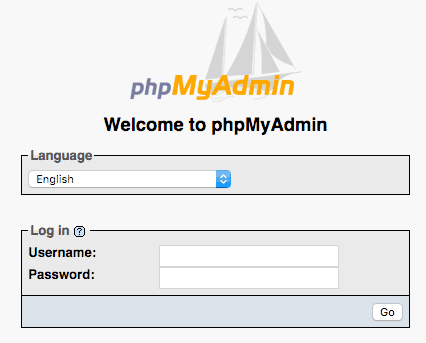
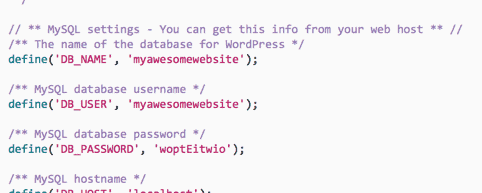
 Once logged in, find your database in the left column and click it once.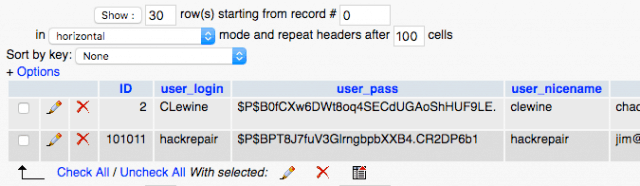
 Ok, the truly scary part. Sorry, you’ll have to trust me on this. We are going to do a database query to identify the invisible users. Click the SQL tab.
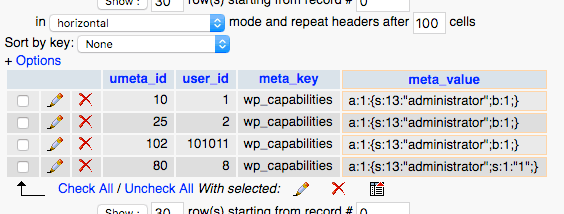
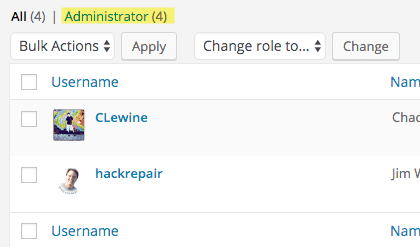
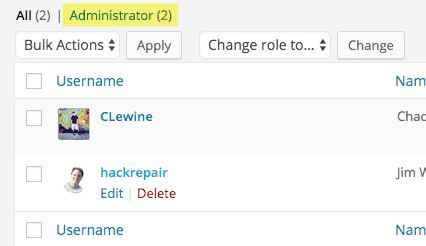
 And now to the callback. After our search in #5 above, notice the extra users Mr/Mrs. Sherlock?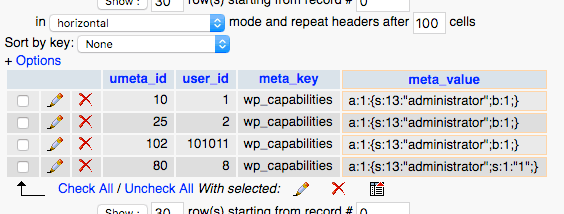

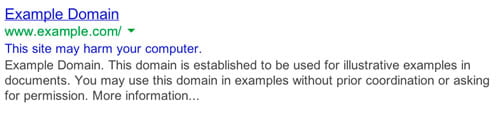
 How to clear your reputation in Google Search
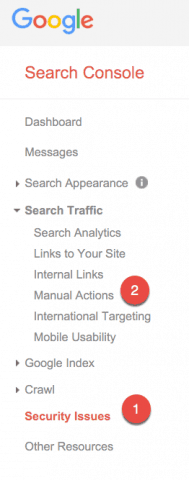
 Once signed into the “Search Console“, click on the “Security Issues” section to see details of sample URLs that might be infected.
 Next, click the “Search Traffic” section and choose “Manual Actions“. If you see the sentence, “No manual webspam actions found.” then all is well there as well.